
Set Up Live Responses / Reporting (ECA Setup)
This step enables live delivery reporting, inbound replies, and link hit notifications back into Salesforce. This uses Salesforce's External Client App (ECA) framework.
Deploy the External Client App
- In the Kudosity setup screen, locate the Live Responses / Reporting section.
- If you see a Setup External Client App button, click it.
- Wait 30–60 seconds for the spinner to complete — the ECA is being deployed in the background.
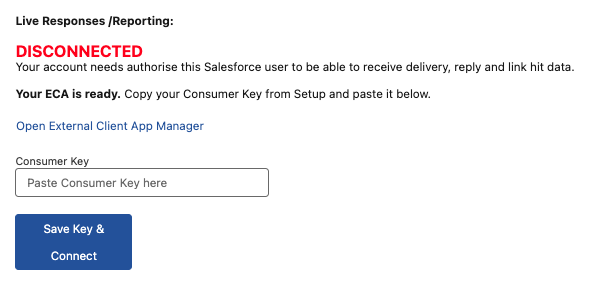
- Once complete, the screen will show "Your ECA is ready" with a Consumer Key input field.
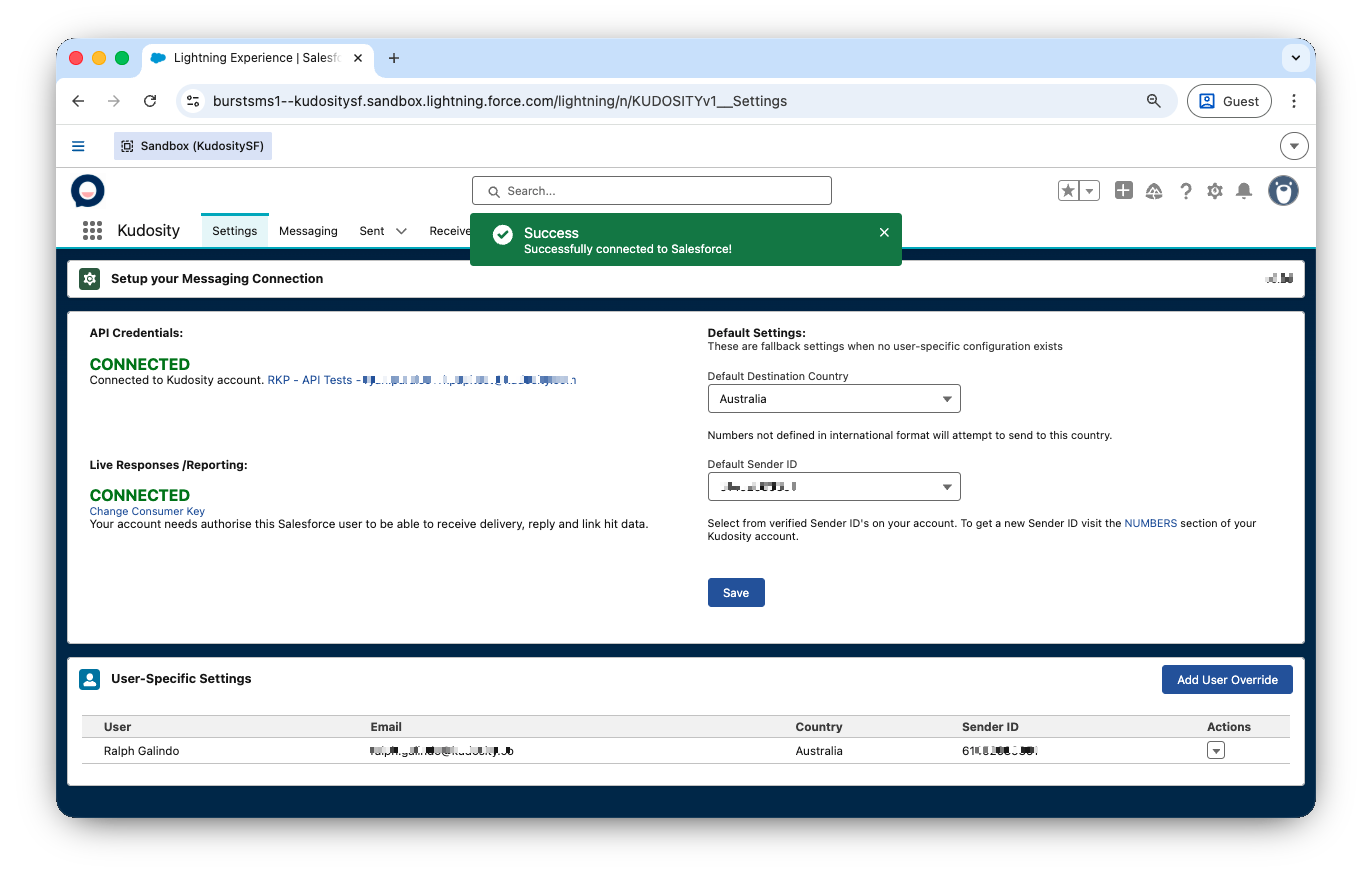
If Live Responses already shows CONNECTED and no button appears, the ECA is already set up — no action needed.
Copy Your Consumer Key
-
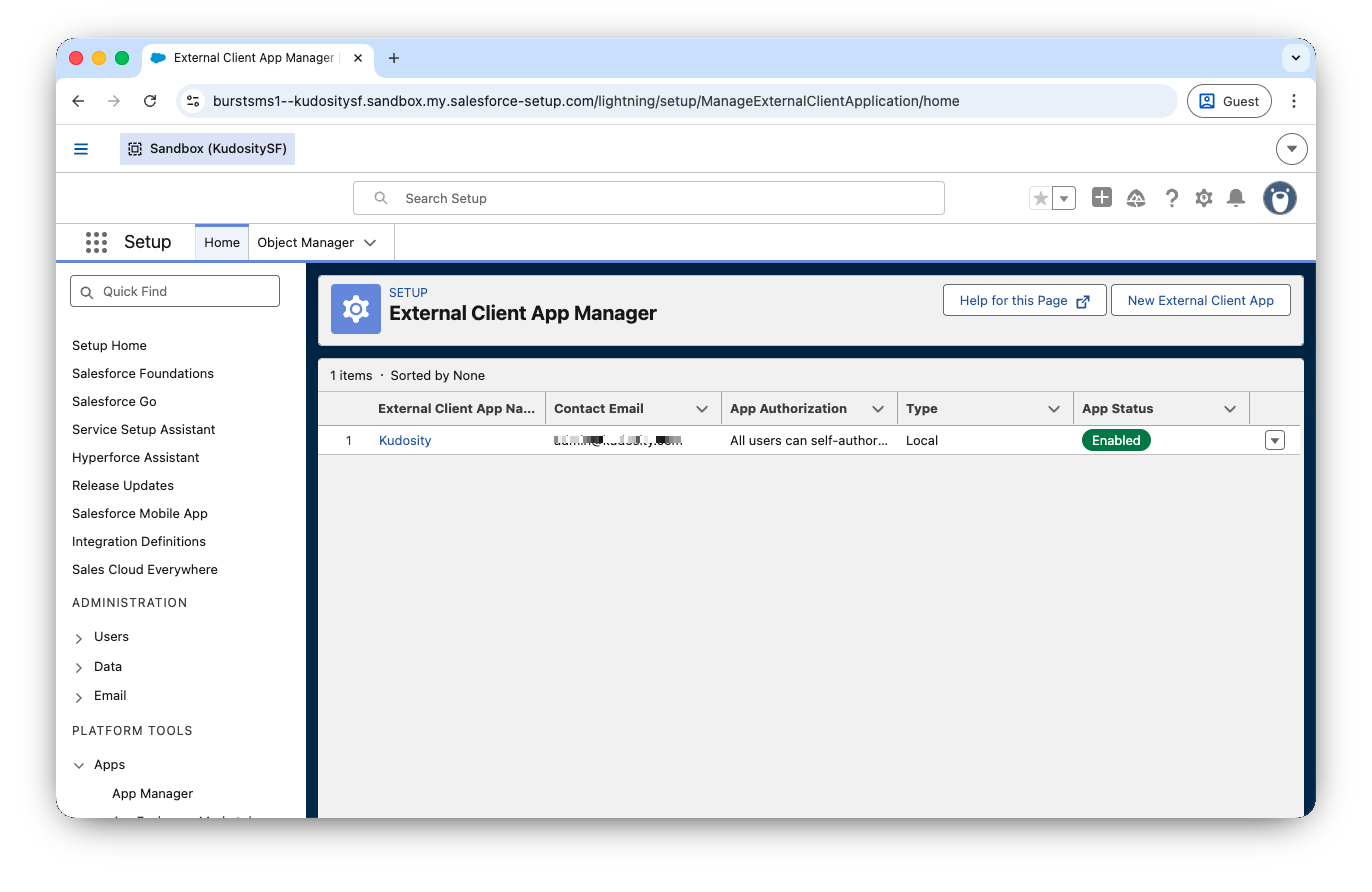
Click Open External Client App Manager — this opens Salesforce Setup in a new tab.
-
Find Kudosity in the list.
-
Click View → View Consumer Details.
-
Authenticate if prompted — Salesforce may send a verification code to your email.
-
Copy the Consumer Key.
Save Key and Connect
-
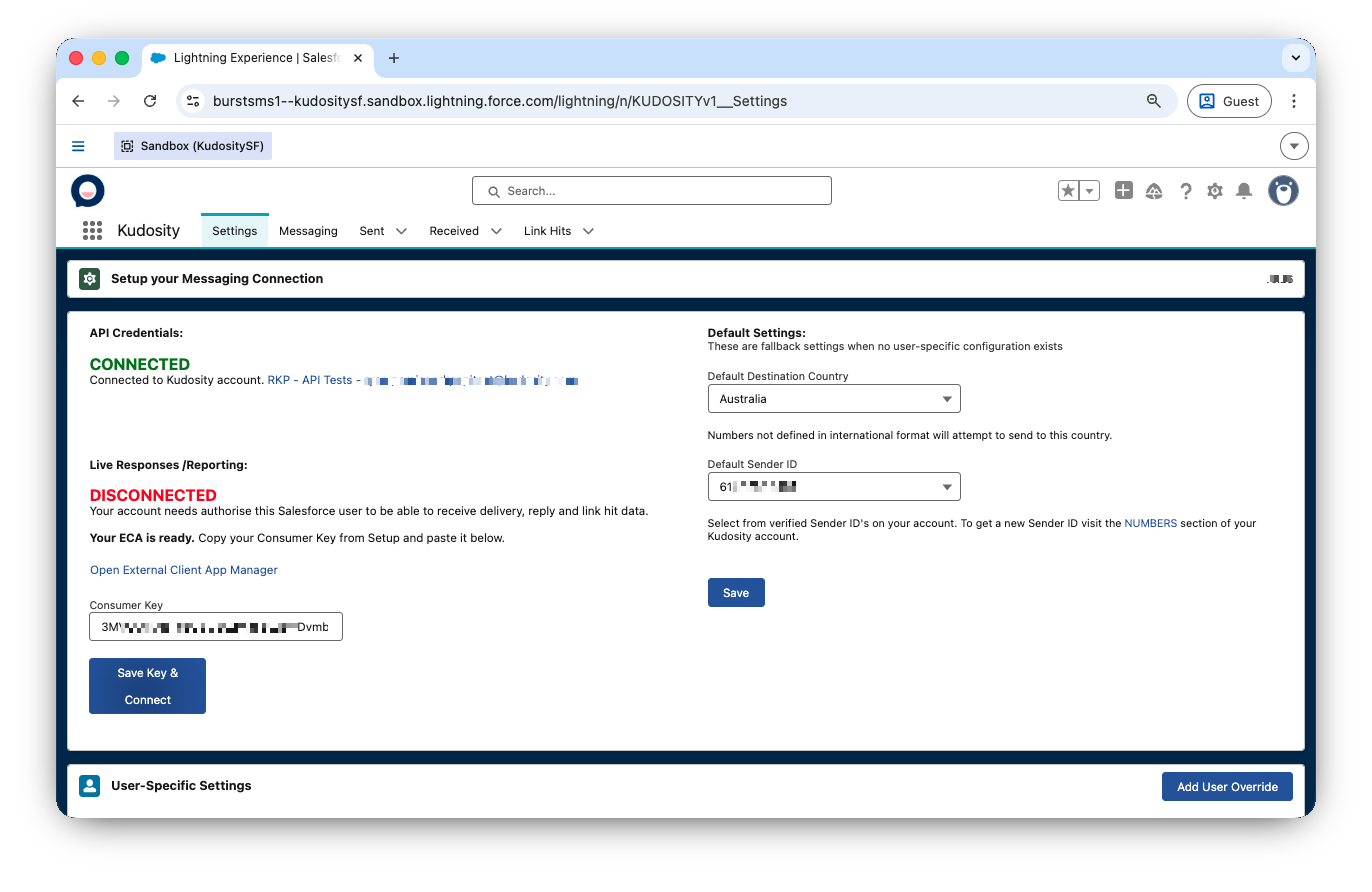
Return to the Kudosity setup screen.
-
Paste the Consumer Key into the field.
-
Click Save Key & Connect.
-
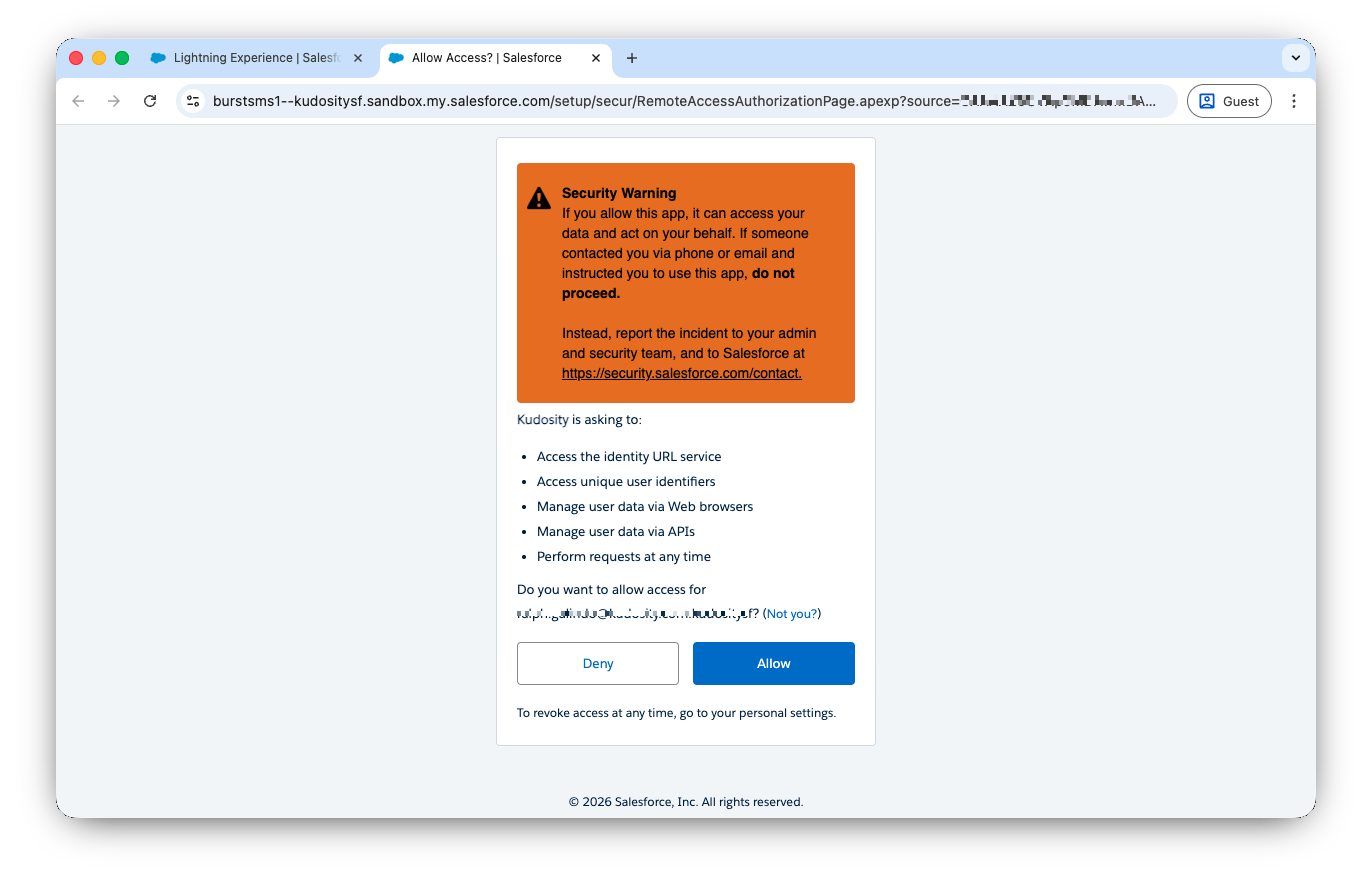
You will be redirected to a Salesforce OAuth consent page — click Allow.
-
You will be redirected back and Live Responses / Reporting will show CONNECTED.
Troubleshooting ECA Setup
| Issue | Resolution |
|---|---|
| Spinner times out / VF session bridge error | Click Setup External Client App again to retry |
| Already shows CONNECTED with no button | ECA is already set up — no action needed |
| Consumer Key field disappears after clicking Open App Manager | The system detected an existing Connected App session — refresh the Kudosity setup screen and check if Live Responses now shows CONNECTED |
| Error email received about ECA failing | Go to the Kudosity Config page and click Setup External Client App to retry |
Updated 5 months ago